Prism (Windows, Linux and macOS)
The Prism tab turns Prism on for the VM and sets how it behaves. Prism shows the VM's apps as Mac windows; see Prism for Windows, Prism for Linux and Prism for macOS for setting it up and using it.
📸 Screenshot:
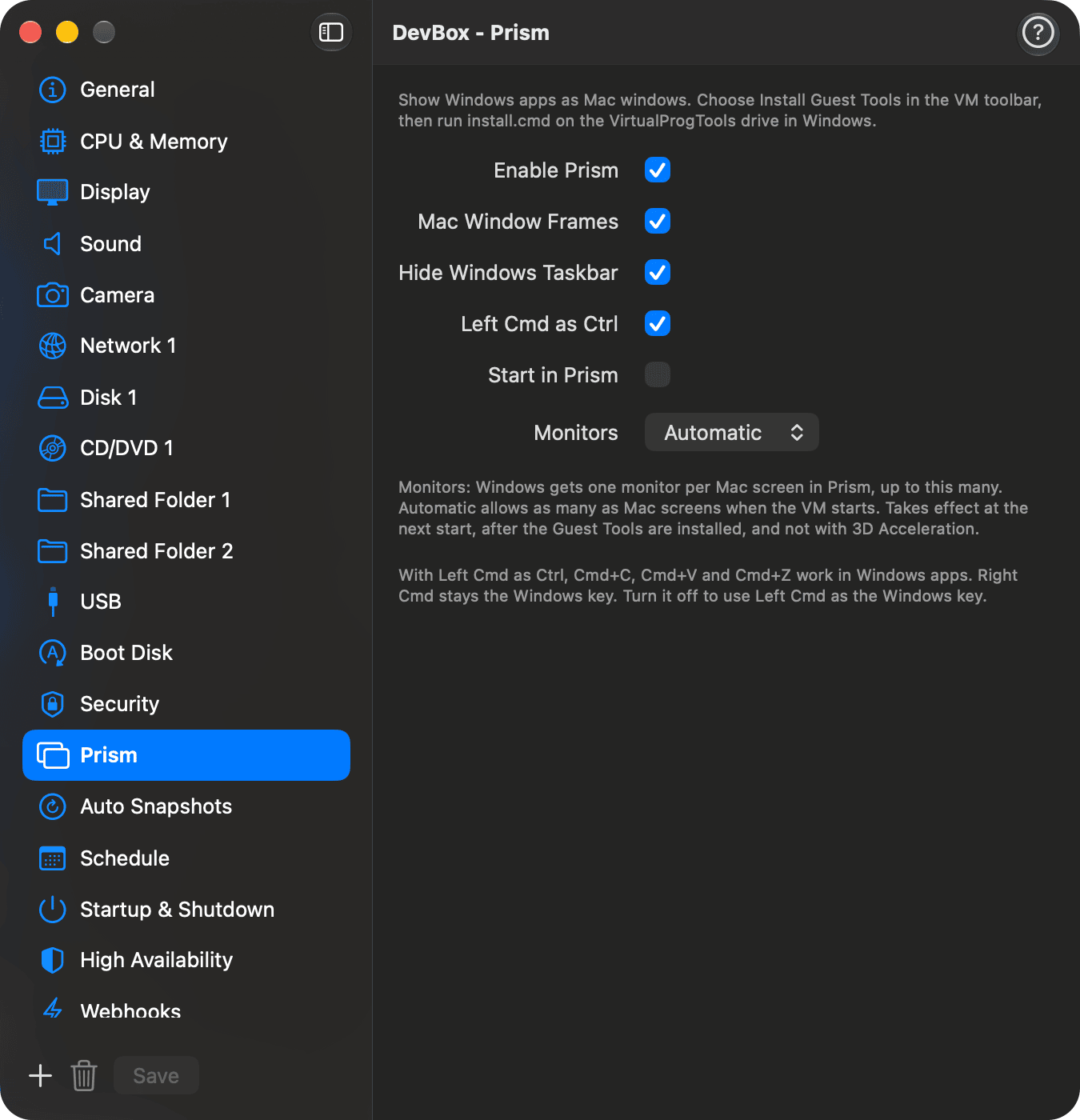
Windows VMs
| Setting | Effect |
|---|---|
| Enable Prism | On by default. Turns the feature on for this VM. Needs the Guest Tools in Windows. |
| Mac Window Frames | Gives windows a Mac title bar with close, minimize and zoom buttons. |
| Hide Windows Taskbar | Hides the Windows taskbar while Prism is on. It returns when you exit. |
| Left Cmd as Ctrl | On by default. Left Cmd works as Ctrl, so Cmd+C, Cmd+V and Cmd+Z work in Windows apps. Right Cmd stays the Windows key. |
| Start in Prism | Enters Prism as soon as the Guest Tools connect after the VM starts. |
| Monitors | One Windows monitor per Mac screen, up to this many (1 to 4). Automatic allows as many as the Mac screens connected when the VM starts. Takes effect at the next start; a VM with 3D Acceleration gets one monitor. |
Linux VMs
| Setting | Effect |
|---|---|
| Enable Prism | On by default. Turns the feature on for this VM. Needs the Linux Guest Tools. Takes effect at the next start of the VM. |
| Left Cmd as Ctrl | On by default. Left Cmd works as Ctrl, so Cmd+C, Cmd+V and Cmd+Z work in Linux apps. Right Cmd is the Super key. |
| Start in Prism | Enters Prism as soon as you log in to the Linux desktop after the VM starts. |
macOS VMs
| Setting | Effect |
|---|---|
| Enable Prism | On by default. Turns the feature on for this VM. Needs the macOS Guest Tools and macOS 14 or later in the VM. Takes effect at the next start of the VM. |
| Start in Prism | Enters Prism as soon as you log in to the VM after it starts. |
macOS apps keep their own shortcuts, so Command stays Command.
Left Cmd as Ctrl (Windows and Linux) can also be changed while in Prism, from the menu bar's Prism menu; the change is saved to this tab.