Prism for Windows
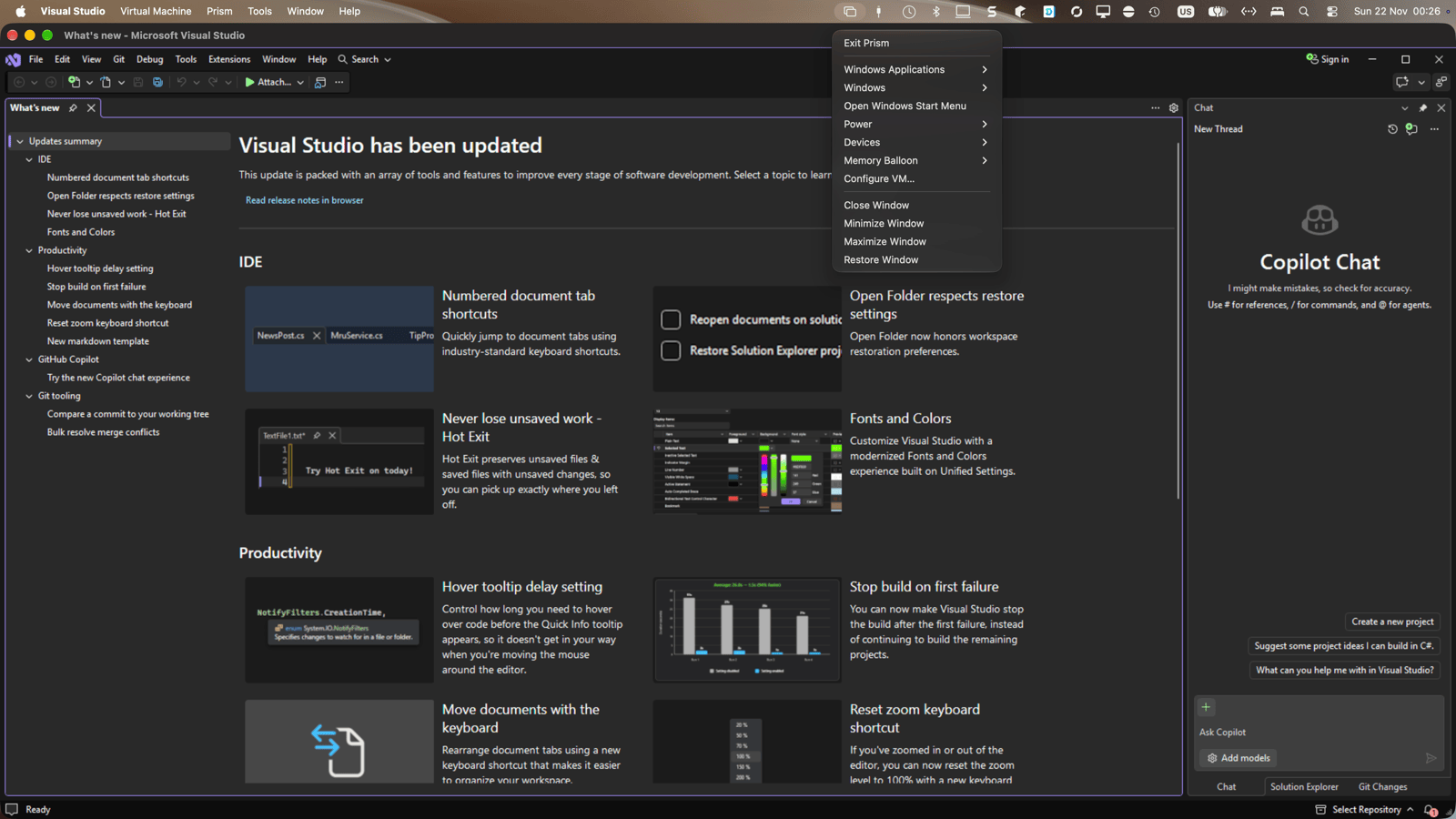
Prism shows each Windows app in its own Mac window, with no Windows desktop around it. Windows work with Mission Control and window switching like Mac windows, and you can drag files between them and Finder both ways.
📸 Screenshot:
Set up (once)
Run install.cmd from Install Guest Tools. It installs the agent.
Enable Prism is on by default for new VMs; for an older VM, turn it on in the VM's
configuration under Prism and restart the VM.
Use Prism
- Click the Prism button in the VM window toolbar (it appears once the agent is connected), or choose Virtual Machine → Enter Prism in the menu bar, or Enter Prism in the VM's context menu (or the Virtual Machine menu) in the Control Center while its window is open. The VM window hides and your Windows apps open as Mac windows.
- A menu bar icon lists your Applications (type to search, press Return to open the first match), Start Menu, Power (Restart, Shut Down, Stop, Pause or Resume, Suspend), Devices (Install Guest Tools, attach or eject disks, shared folders, USB), Memory Balloon, Configure VM, and Exit Prism. The Dock menu has a shorter list: Applications, Windows, Start Menu, Power, Configure VM and Exit Prism. All VMs in Prism, Windows, Linux and macOS, share this icon and the Dock menu, with a submenu for each VM.
- With a Windows app in front, the menu bar has its VM's Virtual Machine menu, without the items for the hidden VM window (screenshots, recording, Show Mac Pointer, Always on Top), and a Prism menu: Windows Applications, Open Windows Start Menu, Windows, Close, Minimize, Maximize and Restore Window, Mac Window Frames, Hide Windows Taskbar, Left Cmd as Ctrl, and Exit Prism. The three settings take effect at once and are saved to the VM's configuration. With several VMs in Prism, the menus follow the VM of the app in front.
- The Mac menu bar is named after the Windows app in front. Its Quit (Cmd+Q) closes that app's windows, as their close buttons would, and Hide (Cmd+H) minimizes them. To quit VirtualProg, click a VirtualProg window first or use the Dock.
- Prism sets the Windows resolution to fit your Mac screen while it is on, and restores it on exit.
- Power actions temporarily leave Prism and show a floating panel. After a restart or resume, or a cancelled shutdown, the VM returns to Prism. Expanding the panel does not change that choice; Exit Prism returns to the normal VM window instead.
Settings
| Setting | Effect |
|---|---|
| Enable Prism | On by default. Turns the feature on for this VM. Needs the agent in Windows. |
| Mac Window Frames | Gives windows a Mac title bar with close, minimize, and zoom buttons. |
| Hide Windows Taskbar | Hides the Windows taskbar while Prism is on. It returns when you exit. |
| Left Cmd as Ctrl | On by default. In Prism windows, Left Cmd works as Ctrl, so Cmd+C, Cmd+V, Cmd+Z and similar shortcuts work in Windows apps. Right Cmd stays the Windows key. Turn it off to use Left Cmd as the Windows key. Cmd+Q, Cmd+H and Cmd+M still go to the Mac menus: Quit and Hide act on the Windows app in front. |
| Start in Prism | Enters Prism as soon as the agent connects after the VM starts. |
| Monitors | Prism gives Windows one monitor per Mac screen, up to this many (1 to 4). Automatic (the default) allows as many as the Mac screens connected when the VM starts; to add a screen later, restart the VM or pick a number. Takes effect at the next start, once the Guest Tools are installed; a VM with 3D Acceleration gets one monitor. |
Good to know
- The green button takes the window to macOS full screen; Option-click it to zoom instead.
- Overlapping Windows apps can show each other's pixels. Click a window to bring it forward.
- With several Mac screens, Windows gets a monitor for each, arranged left to right like your screens (up to the Monitors setting). Drag a Windows app to another screen, or use Window > Move to another display when it has a Mac title bar, and Windows moves it to that monitor. A screen beyond the Monitors setting has no Windows monitor: apps moved there go back to the screen they came from.
- With 3D Acceleration on, Windows gets one monitor only, so Windows apps stay on one Mac screen.
- Prism uses one Dock icon (VirtualProg) for all Windows apps.
- 🔔 Windows' notification pop-ups float at the bottom right of your Mac screen, above other apps. With Share Notifications on, they show in the Mac's Notification Center instead.
- Drag files or folders from Finder onto a Prism window. They are copied to
Downloads\VirtualProgin Windows: a file opens in that window's app, and a folder opens in Explorer with everything in it, hidden files included (symbolic links and macOS metadata such as.DS_Storeare skipped). - 📤 Drag files or folders from Explorer in a Prism window out to Finder, the Desktop or any Mac
app that takes files. They are copied from Windows when you drop them, with a progress panel and
Cancel; links and Windows system files in folders (like
desktop.ini) are skipped, other hidden files are included. Files must be real files on a Windows disk: items inside a zip folder or an email attachment can't be dragged out.
Related
- Prism for Linux: Linux apps as Mac windows.
- Prism for macOS: macOS apps as Mac windows.
- Windows Virtual Machines: the Guest Tools, clipboard and other Windows features.