Quanta AI
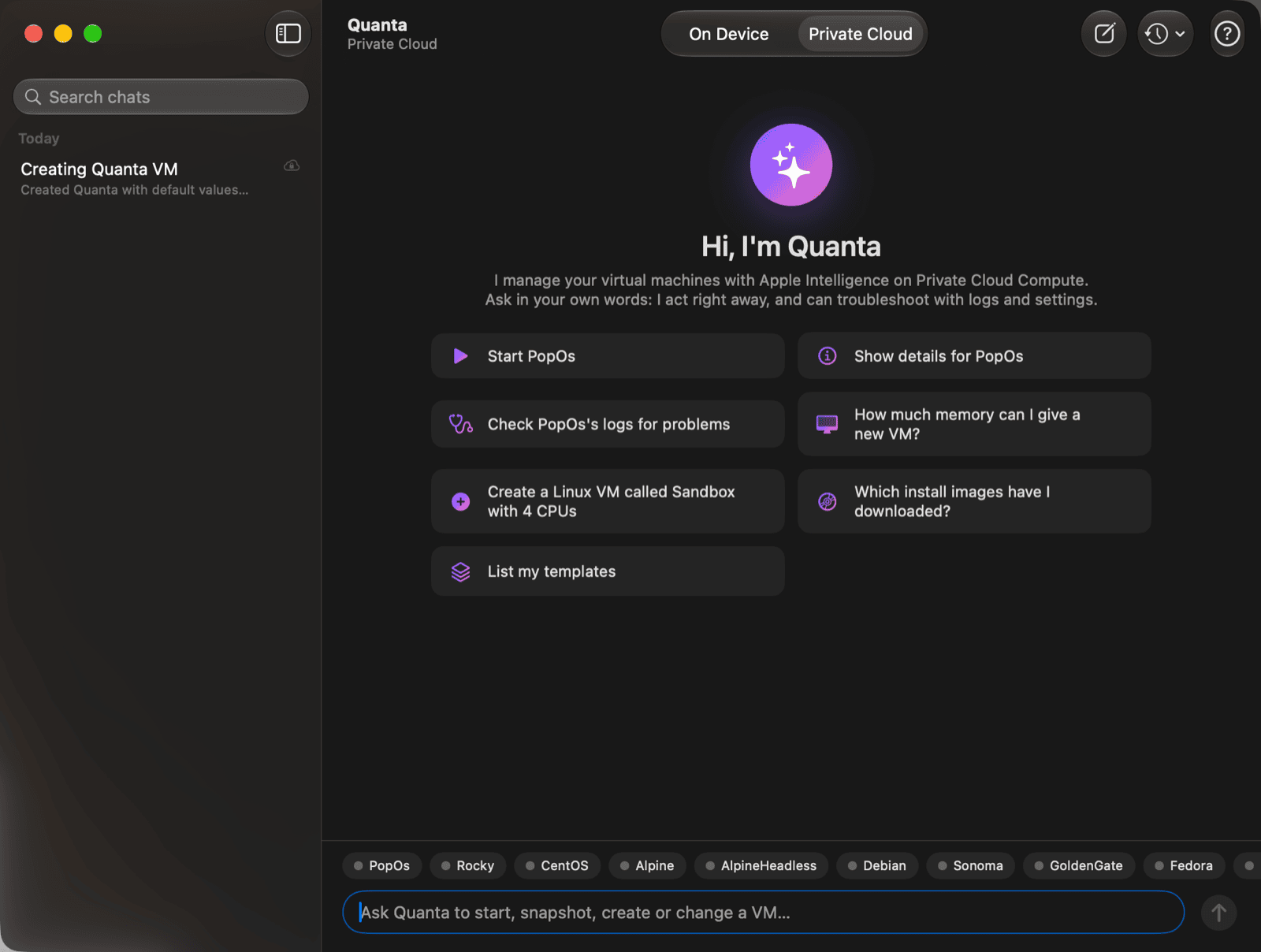
Quanta is an AI chat that manages your virtual machines. Ask in your own words — "start Windows 11", "take a checkpoint of Ubuntu", "create a Linux VM called Sandbox with 4 CPUs" — and Quanta does it right away. Only actions that delete data wait for your click. It uses Apple Intelligence, on your Mac or on Apple's Private Cloud Compute, so no account or API key is needed.
Open it from Tools → Quanta.
Requirements
- macOS 27 or later
- A Mac that supports Apple Intelligence, with Apple Intelligence turned on in System Settings → Apple Intelligence & Siri
If Apple Intelligence is off or still downloading, the window says so and offers to open System Settings.
The Window
- Sidebar — your saved chats, grouped by date, with a search field
- Chat — your messages and Quanta's replies. Each action Quanta takes appears as a chip, such as Start · Win11; click it to see the full result. Failed actions are orange.
- VM strip — every VM with a status dot (green running, orange paused or suspended). Click a VM to add its name to your message.
- Model picker — On Device or Private Cloud, in the toolbar
Replies show how long they took and which model answered.
Private Cloud is in the App Store version only; the trial uses On Device.
What You Can Ask
| Area | Examples |
|---|---|
| Power | Start, stop, shut down, restart, pause, resume or suspend a VM; attach or eject Guest Tools in a running VM |
| Details | State, OS, CPUs, memory, disks, IP address, Guest Tools and uptime; for a running VM, its live CPU and memory use (needs Guest Tools) |
| Create | Quick-create a VM from a downloaded image; clone, rename or delete a VM |
| Settings | CPUs, memory, headless, auto start and description |
| Checkpoints | List, create, restore and delete checkpoints |
| Snapshots | List, create, restore and delete snapshots |
| Templates | List templates, create a VM from a template, save a VM as a template |
| Images | List downloaded images, browse the Image Catalog, start a download, show its progress or cancel it |
| Windows | Open a VM's display, configuration, snapshots, checkpoints or stats, and other windows such as the Network Manager |
Private Cloud adds:
| Area | Examples |
|---|---|
| Every setting | Display, sound, camera, keyboard and mouse, startup and sleep behaviour, auto pause, High Availability, sharing and permissions, provisioning, schedule, auto snapshots, Rosetta, boot disk and SSH |
| Every device | Disks (add, change, grow, remove), network adapters, port forwarding, CD/DVD drives, serial ports, network block devices, USB devices (plugged into a running VM, or connected at start), webhooks |
| Troubleshooting | Reads a VM's logs and full configuration to explain why something failed |
| Linked clones | Create a linked clone, optionally from a checkpoint; list; detach |
| Networks | List, add, change and delete the Network Manager's custom networks, then connect VMs to them |
| This Mac | CPU cores, memory and free disk space, to size new VMs |
For example: "suspend Win11 when the Mac sleeps", "start Ubuntu at 8am on weekdays and stop it at 6pm", "attach the Debian ISO to Win11", "connect my SanDisk stick to Win11 at every start" or "forward Mac port 8080 to port 80 on Ubuntu" or "add a host-only network called Lab and connect Ubuntu to it".
Passwords and keys (VM password, provisioning and SSH credentials) can only be set in the VM's configuration window, so they never enter a chat.
Confirming Deletions
Before Quanta deletes a VM, a disk, a snapshot, a checkpoint or a network, or restores a snapshot or checkpoint, it shows a card naming exactly what will change. Click Delete (or Restore) to go ahead, or Cancel. Everything else runs right away.
A card stays in the chat with the result. A card left unanswered expires when you quit VirtualProg. To skip the cards, turn off Ask Before Deleting in the Options menu.
On Device and Private Cloud
| On Device | Private Cloud | |
|---|---|---|
| Where it runs | On your Mac | Apple's Private Cloud Compute |
| Internet | Not needed | Needed |
| Actions | Core actions | Core actions, plus the Private Cloud list above |
| Context window | 8,192 tokens | 32,768 tokens |
| Chat length | About 20–40 requests before Quanta continues from a recap | Much longer |
| Limit | None | A daily limit set by Apple |
Apple designed Private Cloud Compute so that your requests are used only to answer them and are not stored. See Apple's Private Cloud Compute.
When Private Cloud can't answer — the daily limit is reached, the Mac is offline or the service is down — Quanta answers On Device instead and shows why. It goes back to Private Cloud by itself once Private Cloud works again. A bar under the chat warns when you are near the daily limit; when Apple offers more usage, More Options shows it.
What Quanta Is Best For
The context window is everything the model can hold at once: its instructions, the tools it can use, your VMs, the chat so far and each result. It is measured in tokens; a token is about three-quarters of an English word.
- On Device: 8,192 tokens (about 6,000 words).
- Private Cloud: 32,768 tokens (about 24,000 words).
Apple Intelligence models are compact, so these windows are small. That is why On Device has fewer actions, why long chats continue from a recap, and why Quanta works best with clear, single tasks.
Apple's models also filter their own replies, and may occasionally decline a harmless request. Rephrasing it or starting a new chat usually helps.
For longer, multi-step work — troubleshooting across several VMs, building and configuring environments, or scripting — connect a full-scale assistant such as Claude, GitHub Copilot or Cursor through the MCP Server. These assistants have much larger context windows and can use every VirtualProg action.
Chats and History
Chats are saved on your Mac and listed in the sidebar under Pinned, Today, Yesterday, Previous 7 Days, Previous 30 Days and Older. Quanta names each chat after its first request, then gives it a short title.
- Continue a chat — open it and keep asking; Quanta remembers what you talked about, so "start it again" still works. For a long chat, it remembers the latest requests and says so.
- Search — the search field finds chats by title or message text.
- Rename, Pin, Export, Delete — right-click a chat, or use the Chat menu. Export saves the chat as a Markdown file. Delete asks for confirmation.
- Automatic cleanup — chats not used for 30 days are deleted. Pinned chats are kept.
- Options menu (toolbar) — turn Keep Chat History off to stop saving new chats, show the history folder in Finder, or Delete All Chats.
- Reopening — Quanta opens the chat you had open last. After New Chat, it starts fresh.
Chats are stored in VirtualProg's container on this Mac and are never uploaded. Passwords and keys in VM settings are hidden from the model.
From the Web Dashboard, iPhone, iPad and Android
Quanta is also in the Web Dashboard and the iOS and Android apps, as a
Quanta tab next to the command line, in the terminal's colours and font. Open it with the
Quanta button, from the web's Ask Quanta bar, or by starting a command line with ?, such as
? start ubuntu. It is the same Quanta: it runs on this Mac, uses the model you picked, and shares
the chats in the sidebar, so a chat started on your phone continues here.
- Quanta knows the screen you are on, so "restart it" on a VM's page means that VM.
- On a phone, the model, Chats, New Chat, text size and theme are in the ⋯ menu of the panel's header; on an iPad, a tablet or the web they have their own buttons.
-
Type
/for commands:/new,/chats,/model device,/model cloud,/rename,/pin,/stopand/help. Answer a confirmation withyorn. -
Signed in with the master token only. Scoped tokens don't see the button.
- This Mac needs VirtualProg running with Apple Intelligence on. If it is off, the remote client says so.
- One chat answers at a time, from any device.
- Quanta can't open windows for a remote client; it answers in the chat instead.
Shortcuts
| Shortcut | Action |
|---|---|
| ⌘N | New chat |
| ⌘↩ | Send |
| ⌘. | Stop the reply |
| ↑ / ↓ | Earlier and later requests you typed, in any chat |
| Esc Esc | Clear the message box (↑ brings the text back) |
| ⌘E | Export the chat as Markdown |
| ⌘⌫ | Delete the chat |
Tips
- Quanta sees your current VMs with every message, so "the Windows one" or "it" usually works. If a name is unclear, click the VM in the VM strip.
- Quick create uses an image you have already downloaded. Download one first with "download ubuntu", or from the Image Catalog.
- Settings changes apply the next time the VM starts.
- For complex or multi-step work, use Claude, GitHub Copilot, Cursor or another assistant through the MCP Server.