Prism for Linux
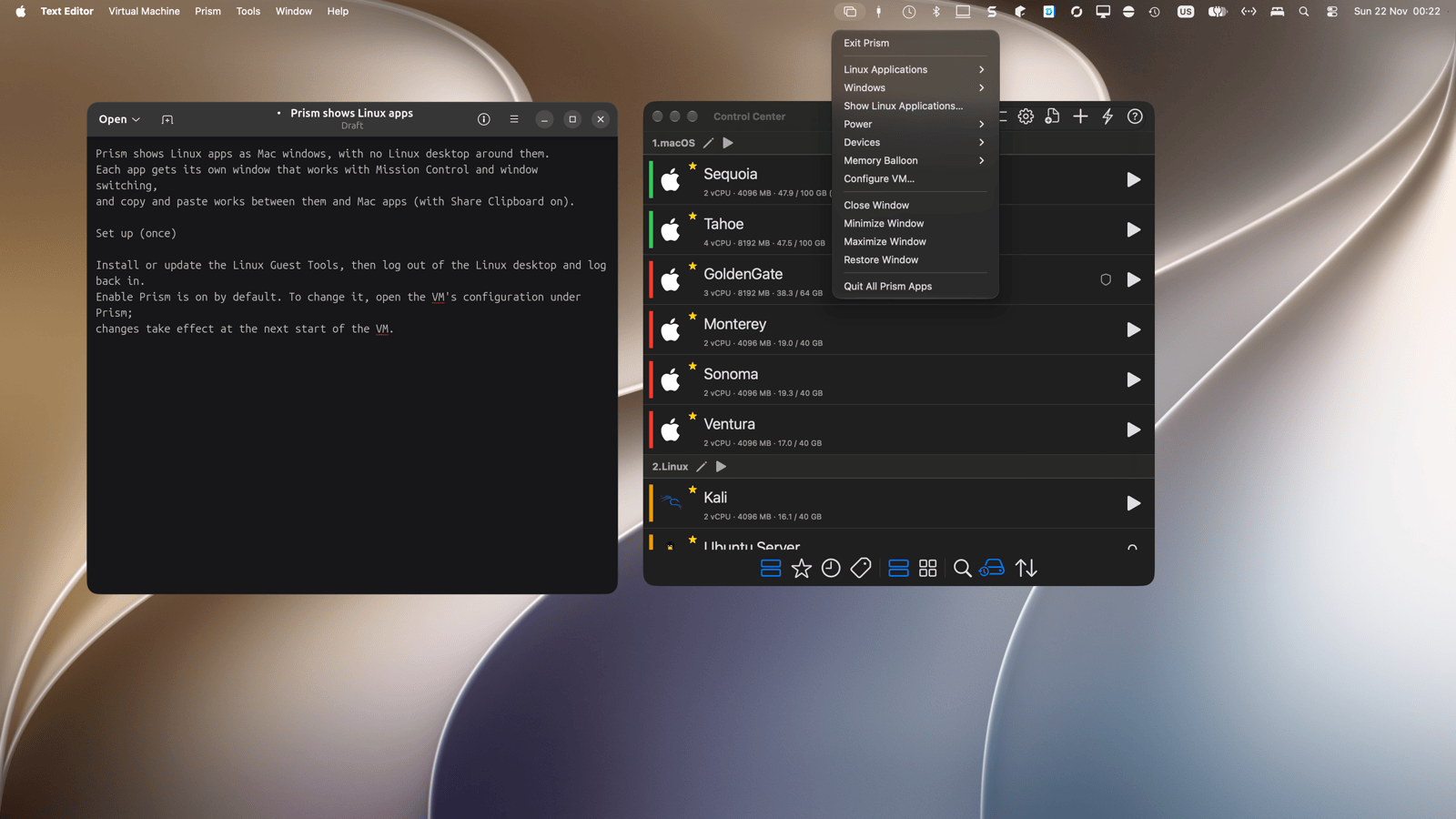
Prism shows Linux apps as Mac windows, with no Linux desktop around them. Each app gets its own window that works with Mission Control and window switching, and copy and paste works between them and Mac apps (with Share Clipboard on).
📸 Screenshot:
Set up (once)
- Install or update the Linux Guest Tools, then log out of the Linux desktop and log back in.
- Enable Prism is on by default. To change it, open the VM's configuration under Prism; changes take effect at the next start of the VM.
Use Prism
- Click the Prism button in the VM window toolbar, or choose Enter Prism from the Virtual Machine menu or the VM's context menu in the Control Center. They appear a few seconds after you log in to the Linux desktop. The VM window hides and Linux Applications opens: click an app to open it as a Mac window.
- A menu bar icon has Exit Prism, Linux Applications (type to search, press Return to open the first match; recently opened apps are at the top), Windows (the open Prism windows), Show Linux Applications…, Power (Restart, Shut Down, Stop, Pause or Resume, Suspend), Devices (Install Guest Tools, attach disks, shared folders, camera, sound), Memory Balloon, Configure VM, Close, Minimize, Maximize and Restore Window, and Quit All Prism Apps. The Dock menu has a shorter list: Linux Applications, Windows, Show Linux Applications, Power, Configure VM and Exit Prism. All VMs in Prism, Linux, Windows and macOS, share this icon and the Dock menu, with a submenu for each VM.
- With a Linux app in front, the menu bar has its VM's Virtual Machine menu, without the items for the hidden VM window (screenshots, recording, Always on Top), and a Prism menu: Linux Applications, Windows, Close, Minimize, Maximize and Restore Window, Quit All Prism Apps, Left Cmd as Ctrl and Exit Prism. The Mac menu bar is named after the Linux app in front: its Quit (Cmd+Q) closes that app's windows, as their close buttons would, and Hide (Cmd+H) minimizes them.
- Power actions in Prism show a floating panel instead of the VM window, whatever starts them (the Prism menus, the Control Center, the CLI, Auto Pause or the Mac going to sleep). Pause hides the Prism windows until you click Resume, so nothing you click or type reaches a paused VM. The panel's Exit Prism leaves Prism, and its expand button shows the VM window.
- The VM returns to Prism with the apps you had open after Suspend and resume, after a live checkpoint, and when you restore a snapshot or checkpoint taken in Prism. After Restart from Prism, it returns to Prism once Linux is up again; when Linux waits at its login screen, the VM window shows so you can log in, and Prism comes back after that. Shut Down keeps the apps on screen until Linux closes them, and offers Stop if Linux doesn't shut down. Shut Down and Stop end Prism and show the VM window; after Exit Prism, the VM stays out of Prism until you enter it again.
- Live snapshots and live checkpoints work in Prism: Prism windows pause while the VM's memory is saved.
- When a Linux app asks for your password to do something as root (such as GParted or Synaptic), VirtualProg asks in a Mac window. Some prompts come from the Linux desktop itself, such as installing software or unlocking a setting: the VM window shows while it asks, and hides again once you answer.
- Linux apps that use X11 (such as
xterm) work too. They look slightly soft on Retina screens.
Which apps appear in Prism
- Apps you open from Prism stay in Prism. When you exit Prism with apps open, VirtualProg asks whether to Keep Running them or Quit Apps. Apps you keep running stay open in Linux and come back the next time you enter Prism; they don't move to the Linux desktop.
- Apps already open on the Linux desktop stay there and don't appear in Prism. Linux can't move a running app between them. Turn on Start in Prism to open your apps in Prism from the start.
Settings
| Setting | Effect |
|---|---|
| Enable Prism | On by default. Turns the feature on for this VM. |
| Left Cmd as Ctrl | On by default. Left Cmd works as Ctrl in Linux apps, so Cmd+C, Cmd+V and Cmd+Z work. Right Cmd is the Super key. |
| Start in Prism | Enters Prism as soon as you log in to the Linux desktop after the VM starts. |
Good to know
- Prism needs a Wayland or X11 desktop session. X11 apps need Xwayland, which Ubuntu, Fedora and Debian include.
- Apps open in Prism use a D-Bus session of their own, so apps such as Files open in Prism even when they're already open on the Linux desktop. Snap apps (such as Firefox on Ubuntu) share the desktop's session, so if one is already open on the desktop, its new window opens there.
- Prism apps draw without 3D acceleration.
Related
- Linux Guest Tools: install and update the tools Prism comes with.
- Prism for Windows: Windows apps as Mac windows.
- Prism for macOS: macOS apps as Mac windows.