macOS Guest Tools
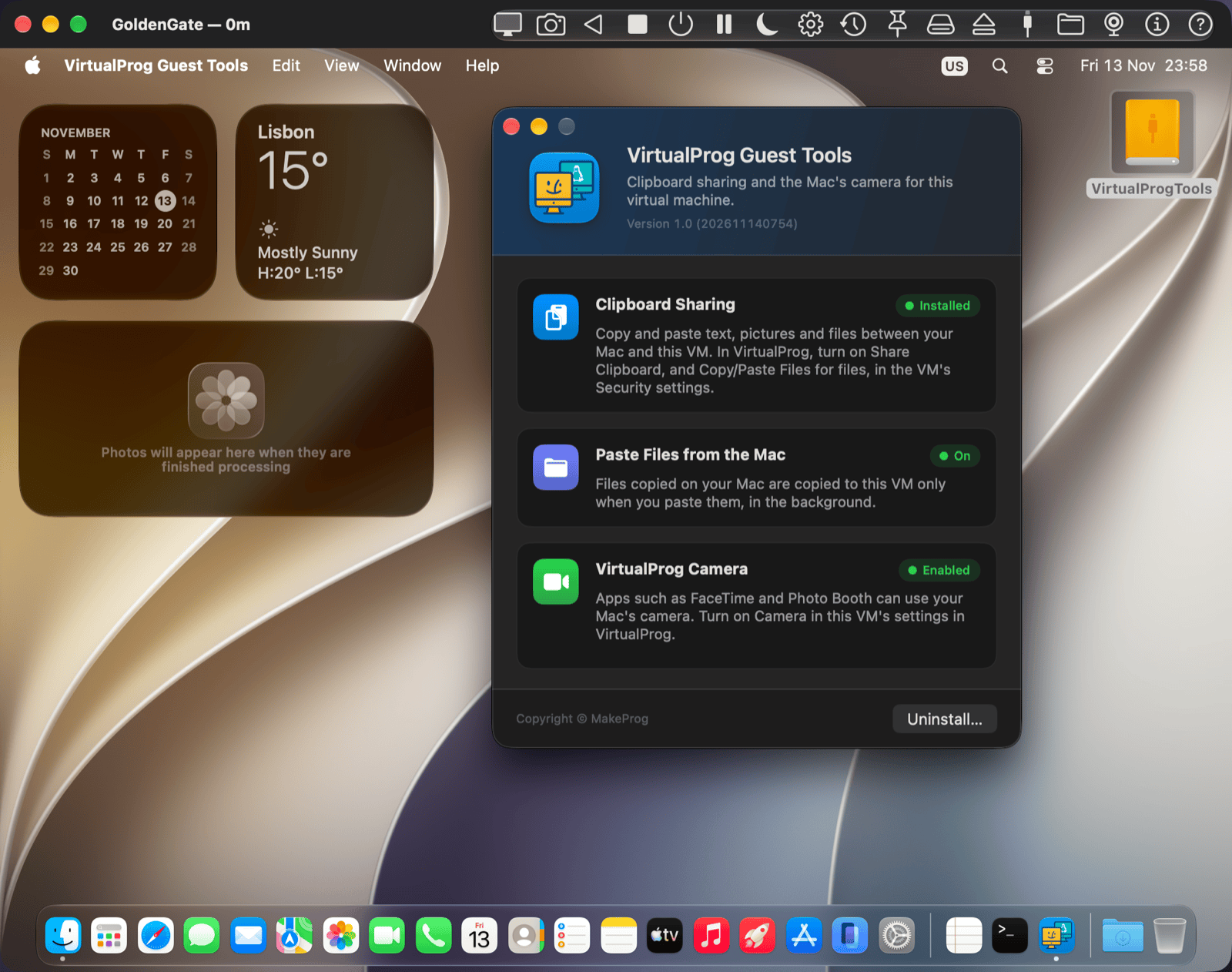
VirtualProg Guest Tools add clipboard sharing, Prism, the Mac's camera, live resource monitoring and Time Sync to a macOS VM. They come in one installer, Install VirtualProg Guest Tools, on the VirtualProgTools disk that VirtualProg attaches to the VM.
📸 Screenshot:
What They Add
| Feature | Description |
|---|---|
| Clipboard sharing | Copy and paste text, pictures and, with Copy/Paste Files, files and folders between the Mac and the VM. Turn on Share Clipboard in Security. See Files. |
| Camera | Apps in the VM, such as FaceTime, Photo Booth and Zoom, use the Mac's camera as VirtualProg Camera. Turn on Camera in the VM's configuration. macOS 12.3 or later in the VM. |
| Live Resources | View guest CPU and memory usage in Live Resources on the Mac, web, iOS and Android, or request a sample with vpvm resources <vm>. Requires current Guest Tools. |
| Time Sync | Keep the VM's clock on the Mac's time. Turn on Time Sync in Security. See Time Sync. |
| Share Mac's Printer | Print from apps in the VM through the Mac's print dialog. Turn on Share Mac's Printer in Security. See Share Mac's Printer. |
| Prism | Show the VM's apps as Mac windows, with their menus in the Mac menu bar. macOS 14 or later in the VM. See Prism for macOS. |
| Share Battery % | See the Mac's battery level in the VM's menu bar. Turn on Share Battery % in Security. See Share Battery %. |
Guest Tools need macOS 12 or later in the VM.
Files
With Copy/Paste Files also on in Security (off by default), copy files and folders in Finder on one side and paste them in Finder, Mail or any app that takes files on the other. The setting applies the next time the VM starts.
- Mac to VM: with the Guest Tools File Provider on (Install, step 5), nothing is copied until you paste in the VM. The files then come over in the background, with a progress on their icon in Finder (click it to cancel), with no size limit. With it off, the files are copied when an app first asks for them: Finder waits for them before it shows its menu. In a macOS 12 VM, folders that hold an app or other package are always copied that way.
- VM to Mac: as for Windows: with Copy and Paste Files from VMs set up once in Settings → Windows, the files go on the Mac clipboard at once and are copied from the VM only when you paste them, with no size limit. Without that setup, they are copied to the Mac as soon as you copy them, up to 1 GB.
- Hidden files in folders are included. Symbolic links and macOS metadata (
.DS_Store,._files) are left out. Executable files (apps' tools, scripts) stay executable both ways. - With fast user switching, the user whose session is on the VM's screen shares the clipboard.
Time Sync
With Time Sync on in the VM's Security configuration, the VM's clock follows your Mac's. It is off by default and applies the next time the VM starts.
- ⏸️ The clock is set to the Mac's time when the VM resumes after a pause or a suspend, after the Mac wakes from sleep, and every minute, also at the login window. Without it, macOS catches up only when it next syncs with Apple's time server.
- 🌍 The VM keeps its own time zone: only the time is set.
- ✋ A clock within 2 seconds of the Mac's is left alone. A time you set by hand is put back within a minute; turn Time Sync off to keep a different time.
Time Sync needs Guest Tools from VirtualProg 2.22 or later, which add a small background service that sets the clock.
Share Mac's Printer
With Share Mac's Printer on in the VM's Security configuration, the VM gets one printer, Mac Printer (VirtualProg). It is off by default and applies the next time the VM starts.
- 🖨️ Print from any app in the VM to Mac Printer (VirtualProg) and your Mac's print dialog opens with a preview: pick any Mac printer, copies, pages, or Save as PDF.
- 📄 Paper size and orientation come from the VM; settings only one printer model has, such as trays or stapling, are chosen in the Mac's dialog.
- 📚 Several jobs open the dialog one after another.
- 🚫 Turn the setting off and the printer is removed from the VM the next time it starts.
Share Mac's Printer needs Guest Tools from VirtualProg 2.22 or later. Their background service adds the printer and takes its jobs, also at the login window.
Share Battery %
With Share Battery % on in the VM's Security configuration, the VM's menu bar shows the Mac's battery: its charge percentage, with a bolt while it charges. It is off by default and applies the next time the VM starts.
- 🔋 The menu bar follows the Mac within about 10 seconds. Click it for the state: charging, plugged in or on battery, and the time remaining.
- 🖥️ On a desktop Mac, it shows 100%, fully charged.
- ℹ️ It is a display only: macOS in the VM keeps running as on power, and System Settings shows Energy, not Battery, as on any desktop Mac.
Share Battery % needs Guest Tools from VirtualProg 2.22 or later. The menu bar item appears once you log in, and goes when the setting is off.
Install
- Start the VM and log in.
- Click Attach Disks in the VM window's toolbar and choose Install Guest Tools. Remotely:
Install Guest Tools on the web live screen or VM details, in the iOS and Android apps, or
vpvm guest-tools <vm>. - In the VM, open the VirtualProgTools disk and double-click Install VirtualProg Guest Tools.
- When the installer finishes, VirtualProg Guest Tools opens and asks macOS to enable the camera. Click Open System Settings and turn on VirtualProg Camera in General → Login Items & Extensions → Camera Extensions. This is needed once.
- For files copied on the Mac: when Paste Files from the Mac in VirtualProg Guest Tools shows Off, click Open System Settings and turn on VirtualProg Guest Tools in General → Login Items & Extensions → File Providers. This is needed once.
Update
From Guest Tools 1.0, VirtualProg knows which version a VM has. When a VM has older Guest Tools than VirtualProg's, the VM's Attach Disks menu, the web dashboard and the iOS and Android apps show Update Guest Tools.
- ⚙️ With Auto Update Guest Tools on (the default, in the VM's Security configuration), VirtualProg updates them by itself, also at the login window: it sends the new Guest Tools to the VM, which installs them; no disk appears. Without it, a VM started from the Mac shows Guest Tools Out of Date, and Update does the same.
- 📋 Guest Tools only install a package signed by MakeProg, of the version VirtualProg asked
for. The log is
/Library/Logs/VirtualProg Guest Tools Update.log; if the update fails, VirtualProg says why in an alert and the VM log, and attaches the VirtualProgTools disk to install them by hand.
This needs Guest Tools from VirtualProg 2.22 or later. Older ones: Update attaches the new Guest Tools; run the installer in the VM again. It updates in place, and the camera keeps working without a restart.
Guest Tools before 1.0 (clipboard sharing only, with the Spice agent spice-vdagent) can't
report a version: install 1.0 over them once. The installer removes the Spice agents, also UTM's
if they were installed by hand.
Uninstall
Open VirtualProg Guest Tools in the VM's Applications folder, click Uninstall… and enter an administrator password. It removes clipboard sharing, the File Provider, the camera and the app itself.
Troubleshooting
- A grey picture saying "No picture from the Mac": the camera is off in the VM's configuration, or VirtualProg can't be reached. Turn on Camera while the VM is shut down, then start it.
- A black picture: VirtualProg isn't allowed to use the Mac's camera. Allow it in System Settings → Privacy & Security → Camera on the Mac. See Permissions.
- VirtualProg Camera is missing in the VM: open VirtualProg Guest Tools and click Enable Camera Again, then approve it in System Settings.
- Copy and paste doesn't work: turn on Share Clipboard in the VM's Security configuration while the VM is shut down, and check that VirtualProg Guest Tools shows Clipboard Sharing as installed. For files, turn on Copy/Paste Files too.
- Finder waits before showing its menu after you copy files on the Mac: the Guest Tools File Provider is off. Open VirtualProg Guest Tools and check Paste Files from the Mac.
- The VM's Guest Tools log: in Terminal in the VM, run
log show --last 10m --info --predicate 'subsystem == "com.makeprog.virtualprog.guesttools"'.