Prism for macOS
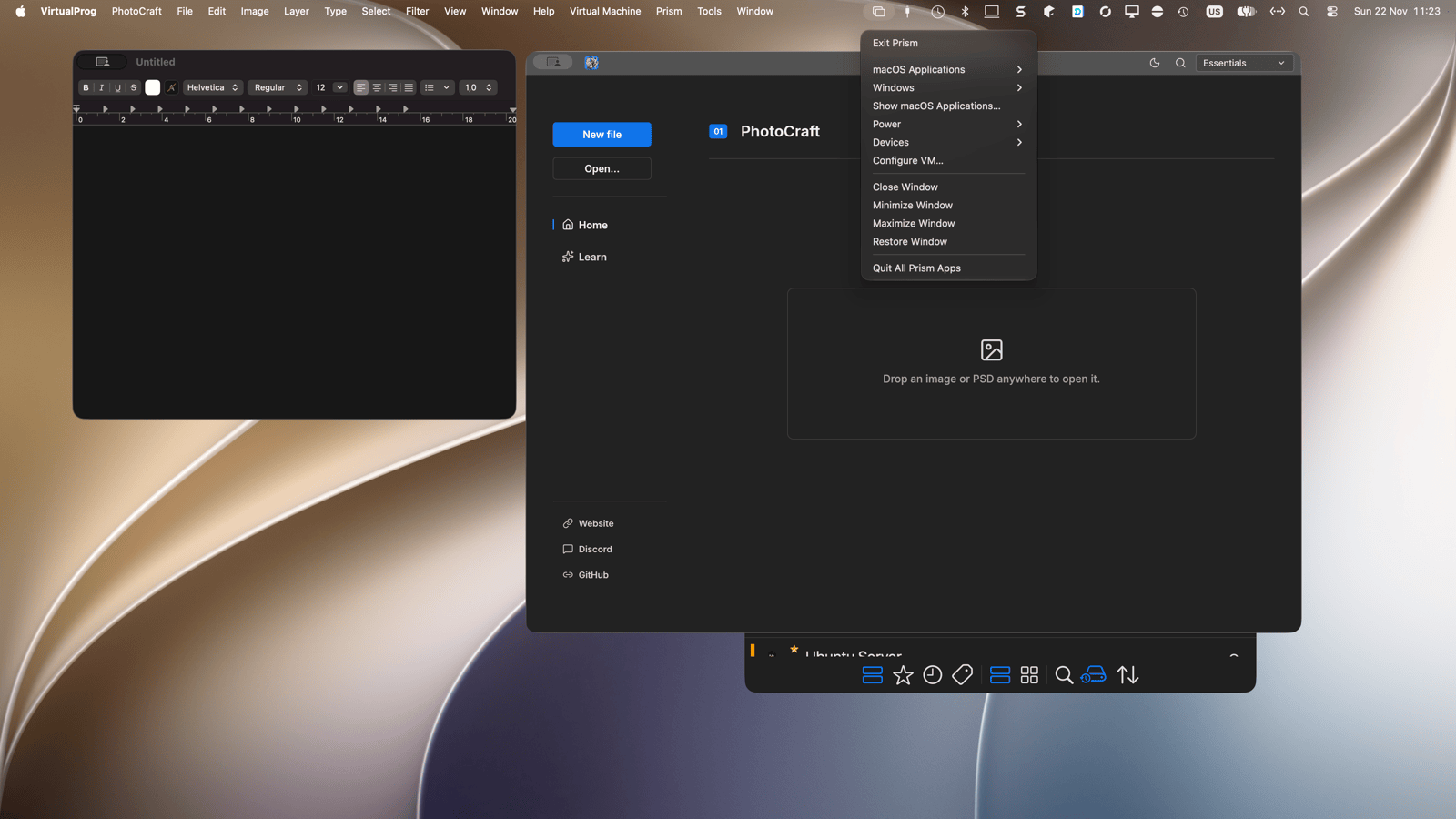
Prism shows the apps of a macOS VM as Mac windows, with no VM desktop around them. Each app gets its own window that works with Mission Control and window switching, and its menus appear in the Mac menu bar while it's in front.
📸 Screenshot:
Set up (once)
- Install or update the macOS Guest Tools. Prism needs macOS 14 Sonoma or later in the VM.
- In the VM, allow VirtualProg Guest Tools under Accessibility and Screen Recording in System Settings → Privacy & Security. macOS asks once when Prism first starts; the Prism card in the Guest Tools window shows what's still missing, with an Allow… button for each.
- Enable Prism is on by default. To change it, open the VM's configuration under Prism; changes take effect at the next start of the VM.
Use Prism
- Click the Prism button in the VM window toolbar, or choose Enter Prism from the Virtual Machine menu or the VM's context menu in the Control Center. They appear once you're logged in to the VM and both permissions are allowed. The VM window hides, the apps already open in the VM appear as Mac windows, and macOS Applications opens: click an app to open it.
- A menu bar icon has Exit Prism, macOS Applications (type to search, press Return to open the first match), Windows (the open Prism windows), Show macOS Applications…, Power (Restart, Shut Down, Stop, Pause or Resume, Suspend), Devices (Install Guest Tools, attach disks, shared folders, camera, sound), Configure VM, Close, Minimize, Maximize and Restore Window, and Quit All Prism Apps. The Dock menu has a shorter list. All VMs in Prism, macOS, Linux and Windows, share this icon and the Dock menu, with a submenu for each VM.
Menus
- With a macOS app in front, the Mac menu bar has VirtualProg's menu first, then the app's own menus (File, Edit, View, Format…), then VirtualProg's, such as the VM's Virtual Machine menu and a Prism menu. Choosing an app menu item does it in the VM; items show their current state (enabled, checked).
- The app's Window menu is replaced by VirtualProg's, which lists the Prism windows. The app's Help menu replaces VirtualProg's; VirtualProg Help is in the Prism menu then.
- Keyboard shortcuts go to the app, as on a Mac: Command stays Command.
Windows
- macOS shows a purple "screen sharing" button over the close, minimize and zoom buttons of every window Prism shows; it can't be turned off. Click it (or where the buttons are) for Close, Minimize, Zoom and Enter Full Screen. Close asks the app, so it can still offer to save your work.
- Drag a window by its title bar or toolbar, and resize it from its edges, as any Mac window. Double-clicking the title bar does what Desktop & Dock → Double-click a window's title bar to says on your Mac (zoom, minimize or nothing).
- Zoom and full screen fill whichever Mac screen the window is on, including a larger external display. While in Prism, VirtualProg sizes the VM's display for your largest screen; it goes back to its own size when you exit Prism.
- Sheets (such as Save dialogs), menus, pop-ups and alerts appear with the window they belong to. Password prompts from macOS itself can't be shown in a Mac window: the VM window appears while macOS asks, and hides again once you answer.
- Power actions in Prism show a floating panel instead of the VM window, as for Linux and Windows VMs. Shut Down and Stop end Prism and show the VM window.
Which apps appear in Prism
- Every regular app's windows appear in Prism, including apps that were open before you entered it. Apps without windows of their own (menu bar extras, background helpers) don't.
- When you exit Prism with apps open, VirtualProg asks whether to Keep Running them or Quit Apps. Apps you keep running stay open in the VM and come back the next time you enter Prism.
Settings
| Setting | Effect |
|---|---|
| Enable Prism | On by default. Turns the feature on for this VM. |
| Start in Prism | Enters Prism as soon as you log in to the VM after it starts. |
Good to know
- Copy and paste between macOS apps and Mac apps uses Share Clipboard in Security, as outside Prism.
- macOS 15 and later may ask again from time to time whether to keep allowing Screen Recording; allow it to keep using Prism.
- Prism windows show the app's pixels as the VM draws them: apps look as sharp as on a Mac screen, and video and animations play at up to 60 frames per second.
Related
- macOS Guest Tools: install and update the tools Prism comes with.
- Prism for Linux: Linux apps as Mac windows.
- Prism for Windows: Windows apps as Mac windows.